

VS Code Extension Setup
Install the CoreFix extension for VS Code and sign in. To run scans, see Scanning with the VS Code Extension.
Requirements
| You need | Details |
|---|---|
| VS Code | Version 1.85 or newer |
| Operating system | Windows, macOS, or Linux |
| CoreFix CLI | Follow Installing the CoreFix CLI, or install it from the extension's setup card. |
| Docker | Docker Desktop on Windows and macOS, Docker on Linux. It must be running, not just installed. |
| Git | Download Git if you do not have it |
| CoreFix scanner images | A one-time download of a few GB. The extension can start it for you (corefix update). |
| A CoreFix account | Sign up if you do not have one |
Remote windows. If you use WSL or a Remote-SSH window, install the extension in that window, and install the CoreFix CLI, Docker, and Git on the remote machine, because that is where your code and the scan run.
Install and sign in
1. Check the CoreFix CLI. After installing it, confirm it works:
corefix --versionYou can skip this step and let the extension do the setup for you (see step 3).
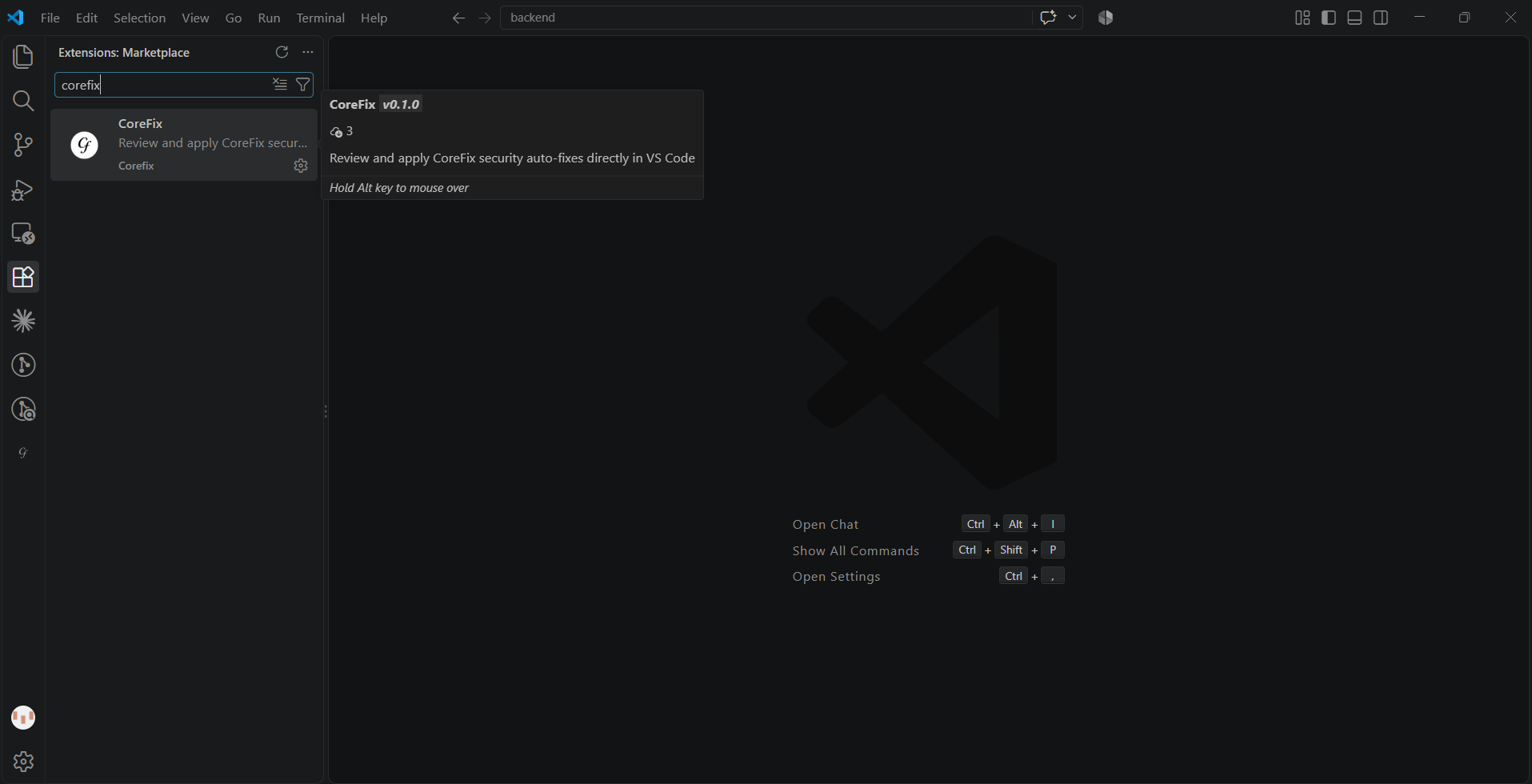
2. Install the extension. In VS Code, open Extensions (Ctrl+Shift+X), search for corefix, and click Install. A CoreFix icon appears in the Activity Bar.
3. Finish the setup. Open the CoreFix view. A setup card checks Docker, the CoreFix CLI, the scanner images, and Git, and shows what is missing:
- CoreFix CLI. Click Install to run the official installer in a terminal. On Windows it runs in PowerShell. On Linux and macOS it asks for your
sudopassword. The extension continues on its own once the CLI is installed. - Docker. If it is missing, the card links to Docker Desktop (Windows and macOS). If it is installed but stopped, start it, then check again.
- Scanner images. Click Download to fetch them (a few GB, one time).
- Git. If it is missing, the card links to the Git download page.
4. Sign in. Choose one way:
- Sign in with your browser. Click Sign In, log in on the page that opens, then come back to VS Code. It continues on its own. If no page opened, click Open in Browser.
- Use an API key. Click CoreFix Platform, create a key (how to create one), paste it into the field, and click Continue.
Your sign-in is kept on your computer, in a CoreFix session file in your home folder. The CoreFix CLI uses the same file, so signing in to one signs you in to the other.
Sign out
Click Sign Out at the bottom of the Home panel, or run CoreFix: Sign Out from the Command Palette. If a scan is running, you are asked first, and signing out cancels it.
Troubleshooting
CoreFix CLI not found
Click Install on the setup card, or install it yourself and run corefix --version, then click the retry icon. If it is still not found on Windows, restart VS Code.
Docker isn't installed or isn't running
Install or start Docker (Docker Desktop on Windows and macOS), then refresh.
The CoreFix image isn't available on this machine
Click Download on the setup card, or run corefix update in a terminal, then refresh.
Couldn't reach CoreFix or sign-in failed
Check your internet connection and try again, or sign in with an API key.
Your CoreFix session has expired
Click Sign In.
CoreFix couldn't finish loading
Open the CoreFix output channel for the details, then reload the window.