
Security Reports
Overview
After every scan, CoreFix generates a fully self-contained HTML security report and delivers it to your team. This page explains how to access that report, what each section means, and how AI-enriched findings differ from raw scanner output.
Accessing Your Report
Email Notification
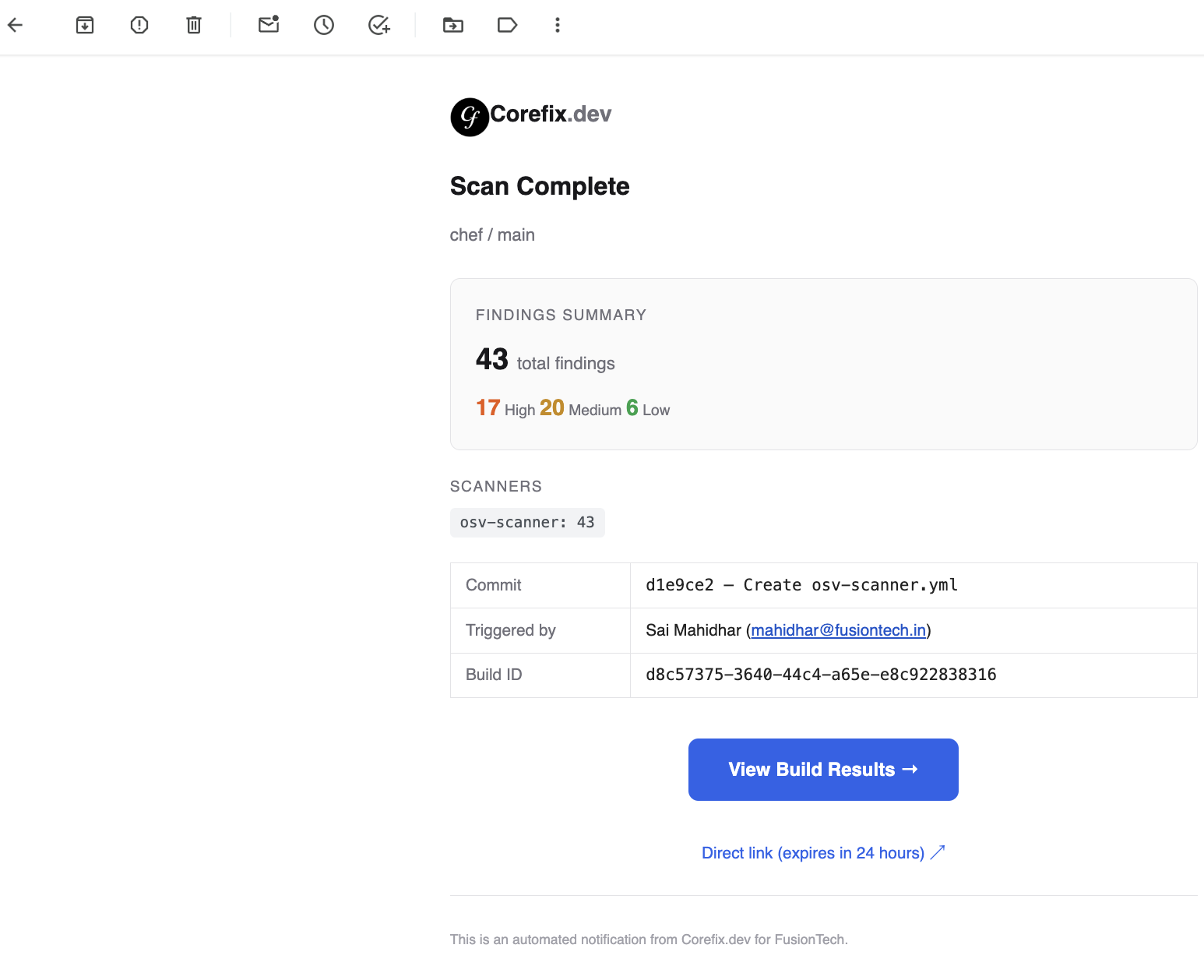
When a scan completes, every email address configured on the project receives a notification email containing:
- Severity summary — counts of Critical, High, Medium, and Low findings at a glance
- Scanner breakdown — which scanners ran and how many issues each found
- Build details — commit SHA, commit message, who triggered the build, and the build UUID
- Two links to the report (see below)
Option 1 — Login via the Reports Portal
The email contains a View Build Results → button that takes you to the Reports Portal pre-filled with your project and organization IDs.
Login flow:
- Enter the email address that received the notification (must be an authorized project member)
- Enter the project password set by your administrator
- Your session is valid for 1 hour — after that you must re-authenticate
Once logged in:
- You see all branches that have builds
- Select a branch to see its last 7 builds, sorted newest first
- Click any build to open the full report
The session token expires after 1 hour. If the report page stops loading or returns a 401 error, log in again via the Reports Portal.
Option 2 — Direct Signed URL
The email also contains a Direct link below the main button. This is a pre-signed R2 URL that opens the report without any login.
- Expiry: 1 hour from the time the email was sent
- After expiry the link returns an error — use the login flow to access the report instead
- The link is scoped to a single build and cannot be used to browse other builds
- Clicking ☀️ / 🌙 toggles between light and dark mode. The preference is saved in your browser.
Projects and Builds
| Concept | What it is |
|---|---|
| Project | A repository (Git or web target) tracked in your organization. Identified by project_id and repo name. |
| Build | One scan run against a specific commit and branch. Each build has a unique build_uuid. |
| Branch | A Git branch (e.g. main, dev). The portal lets you switch between branches and see each branch's history independently. |
Builds are listed newest first (by created_on timestamp). The top entry is always the most recent scan.
Click on a project from the Projects list to open it and view its findings, build history, and scan details.

Once inside a project, each build card shows:
- Branch, commit SHA, and commit message
- Who triggered the scan
- Total finding count and severity breakdown
- Scan status
Header
CoreFix / <repo> / <branch> / <build>
Switching Branches and Builds
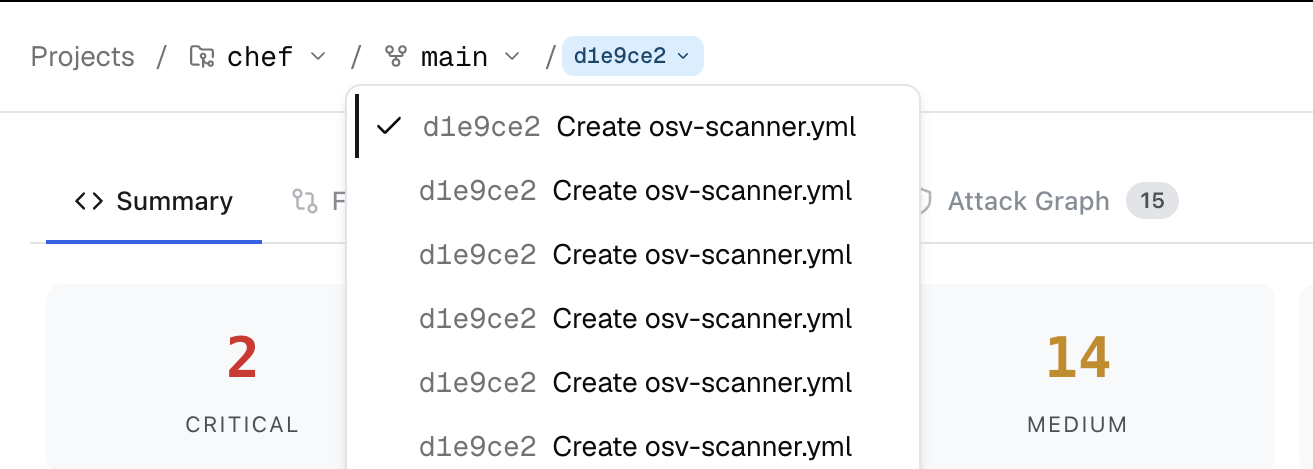
Use the branch dropdown in the breadcrumb to switch between branches and view findings scoped to that branch independently.
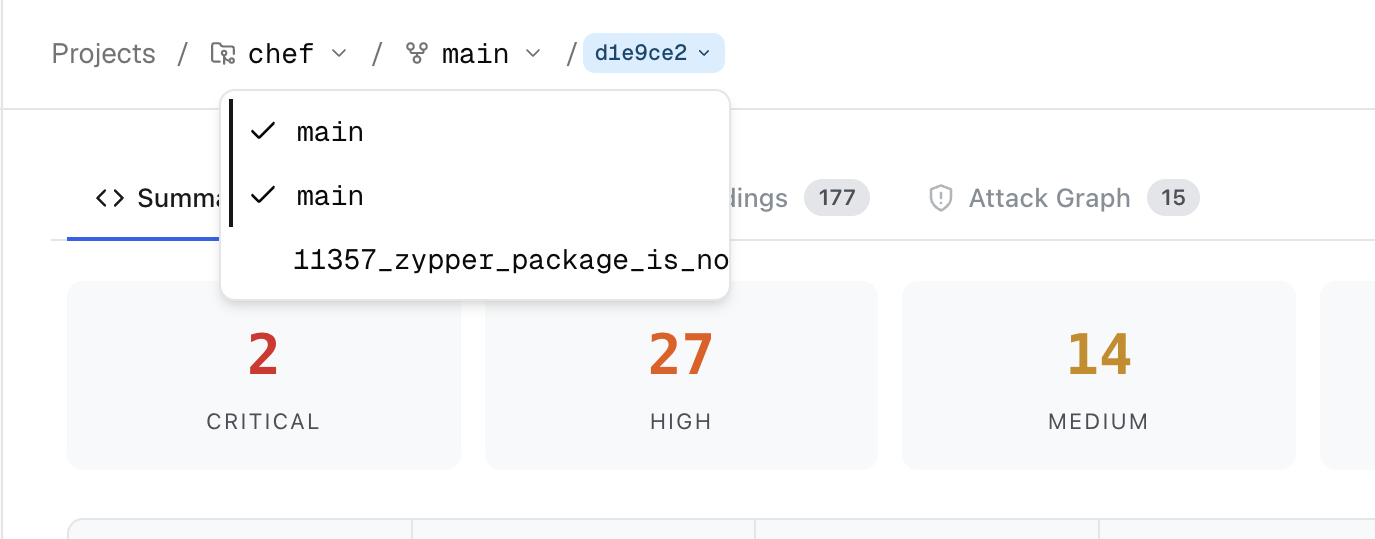
Once a branch is selected, use the build dropdown to switch between individual scan runs on that branch — useful for comparing findings across commits or revisiting a previous scan.
Inside the Report
Every report shares the same layout:
Tabs
The report has four tabs. Click any tab to switch; counts in the tab badge update with the current filter.
| Tab | Contents |
|---|---|
| Summary | Severity totals, AI pipeline stats, scanner breakdown, compliance, attack chains overview |
| Findings | AI-enriched findings — prioritized, explained, and classified |
| Raw Findings | Unprocessed scanner output before AI enrichment |
| Attack Graph | Interactive visualization of multi-step attack paths |
Summary Tab
Severity Cards
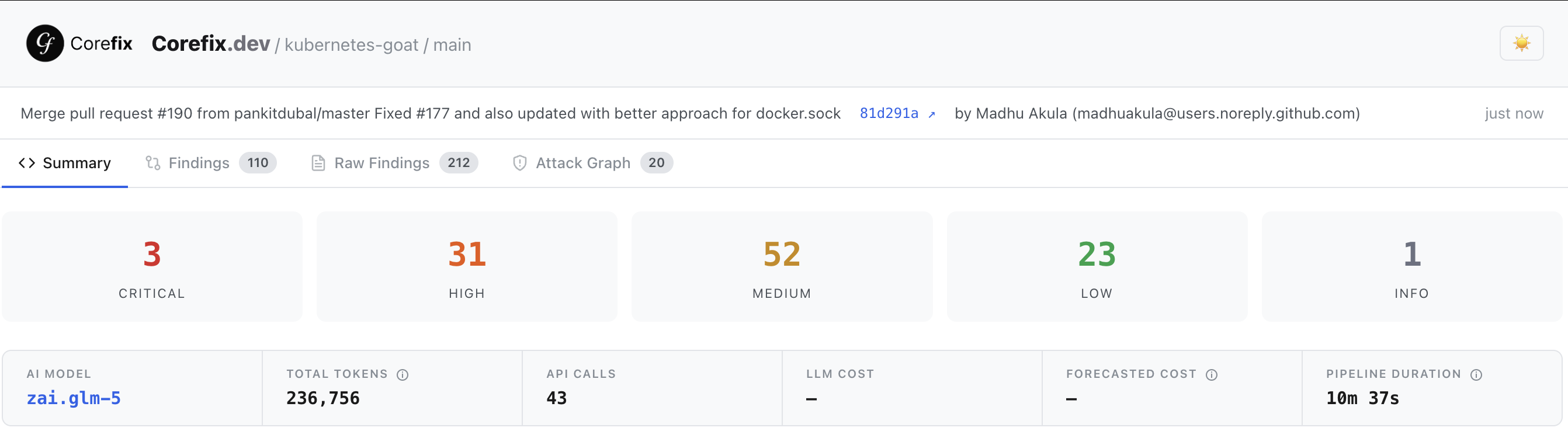
Five cards display counts for Critical · High · Medium · Low · Info.
Clicking a card jumps directly to the Findings tab with that severity pre-selected.
AI Pipeline Stats
A stats strip shows how the AI enrichment pipeline performed:
| Stat | Meaning |
|---|---|
| AI Model | The Claude model used for enrichment |
| Total Tokens | Combined input + output tokens (hover for prompt / completion split) |
| API Calls | Number of LLM calls made during the build |
| LLM Cost | Actual cost of LLM API usage |
| Forecasted Cost | LLM cost + estimated Cloudflare Worker time (hover for formula) |
| Pipeline Duration | Time from scan start to enrichment completion |

Scanner Breakdown
A bar chart showing each scanner's finding count relative to the highest. The longest bar represents the scanner with the most findings.
Classification
A breakdown of findings by exploit class:
| Class | Meaning |
|---|---|
IMMEDIATELY_EXPLOITABLE | No prerequisites — attacker can exploit directly |
EXPOSED_SECRETS | Credentials, keys, or tokens exposed in code or config |
REACHABLE_VULNS | Vulnerable code path reachable from application entry points |
LIKELY_FALSE_POSITIVE | AI assessed low confidence in the finding |
UNCLASSIFIED | Not enough context to classify |
Compliance Frameworks
Badges for every compliance standard (e.g. OWASP, SOC2, PCI-DSS) that appears in at least one enriched finding.
Attack Chains Overview
Up to 10 attack chains are listed here with their severity and steps. The full interactive view is on the Attack Graph tab.
Findings Tab — Enriched Findings
This is the primary tab for day-to-day triage. Every finding here has been processed by the AI pipeline, which adds context, scoring, and prioritization on top of raw scanner output.
Filtering
Severity pills (row of clickable chips):
All · ● Critical · ● High · ● Medium · ● Low · ● Info · ★ AI Priority
- Click a pill to filter by that severity
- Click ★ AI Priority to show only the top-ranked findings (up to 15 per build)
Search bar — full-text search on finding names.
Scanner dropdown — filter to a single scanner.
Class dropdown — filter by exploit class (IMMEDIATELY_EXPLOITABLE, EXPOSED_SECRETS, etc.).
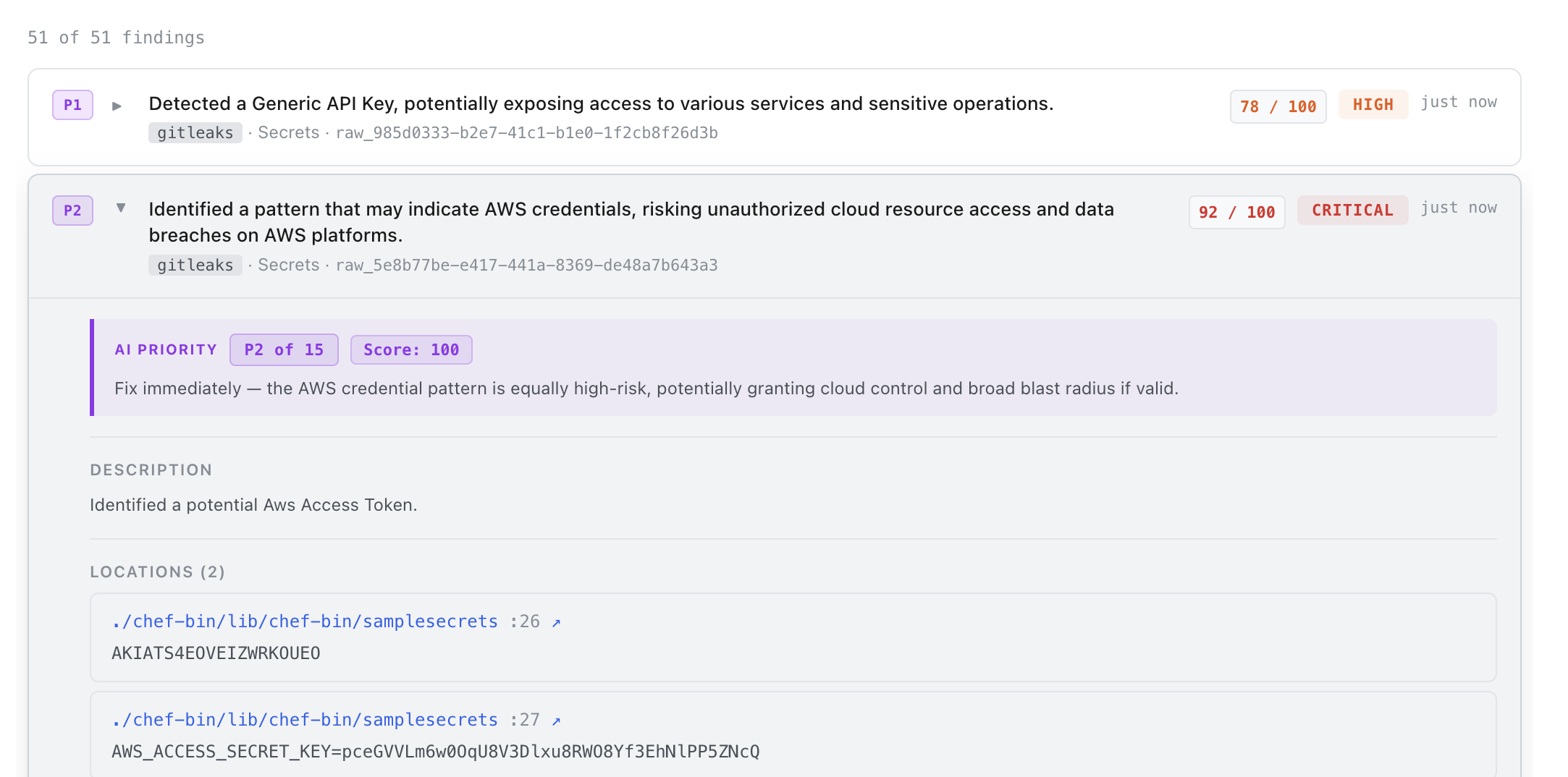
The result count at the top of the list updates as you filter: N of M findings.
Finding Cards
Each card shows:
[P1]  ▶  <finding name>
         <scanner tag>  ·  <category>  ·  <finding_id>
                                          <risk score>  <SEVERITY>  <time ago>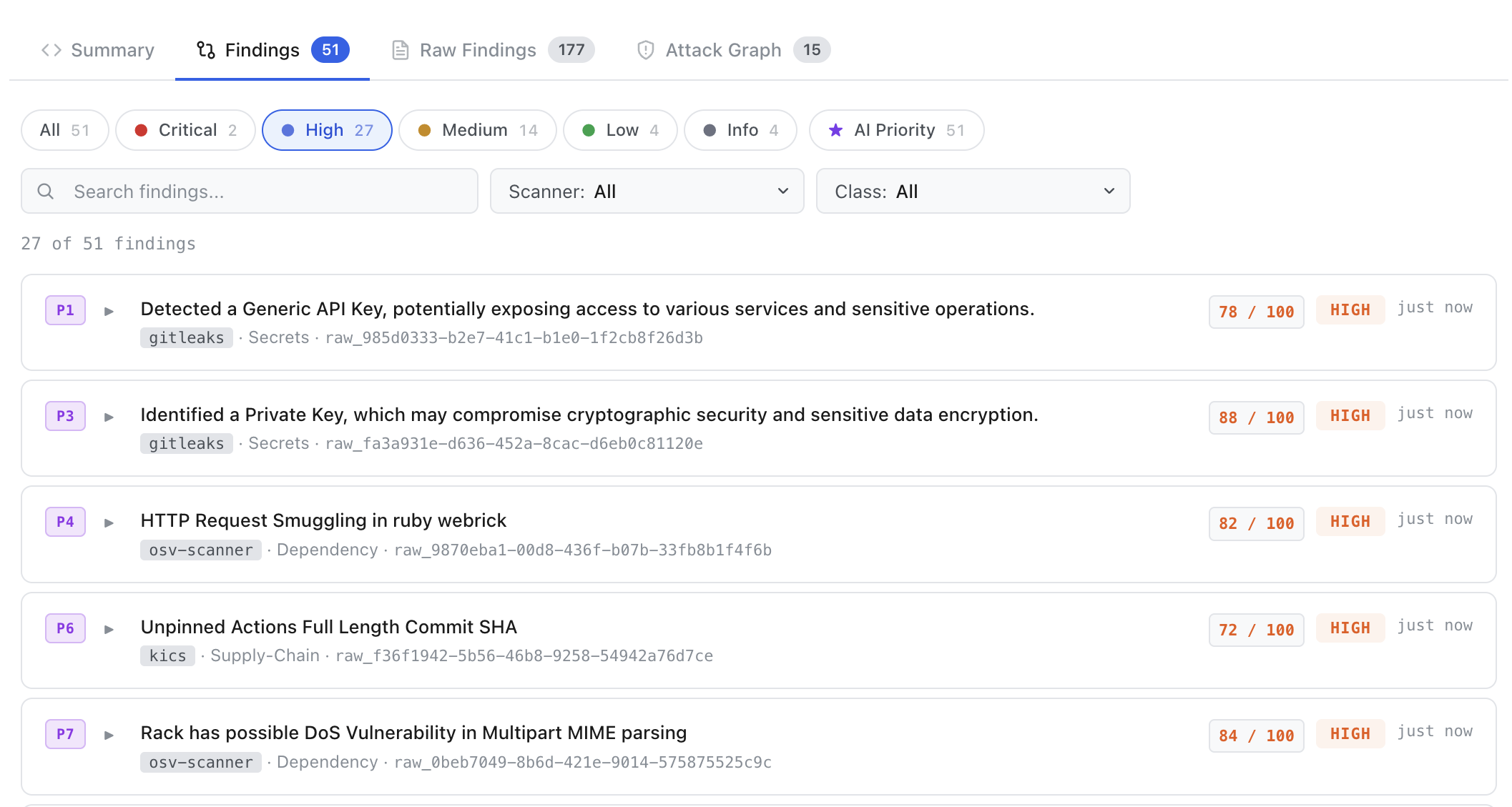
- P1 … P15 — AI Priority badge (colored by tier: violet > blue > teal > slate). Only top-15 findings have this badge.
- Risk score — a 0–100 composite score. Hovering shows a breakdown panel (Exploitability, Impact, Asset Criticality, Exposure, Context).
- Severity badge — AI-assessed risk rating: CRITICAL / HIGH / MEDIUM / LOW / INFO.
- Click anywhere on the row to expand the full finding detail.
Expanded Finding Detail
Clicking a card reveals all enriched fields:
| Section | Content |
|---|---|
| AI Priority callout | Shown for top-15 findings. Displays rank (e.g. P3 of 15), composite priority score, and the AI's reasoning note. |
| Description | AI-written explanation of the vulnerability in plain language. Supports inline code, headers, and bullet points. |